Why Laptop Specs Feel Confusing — And How to Cut Through
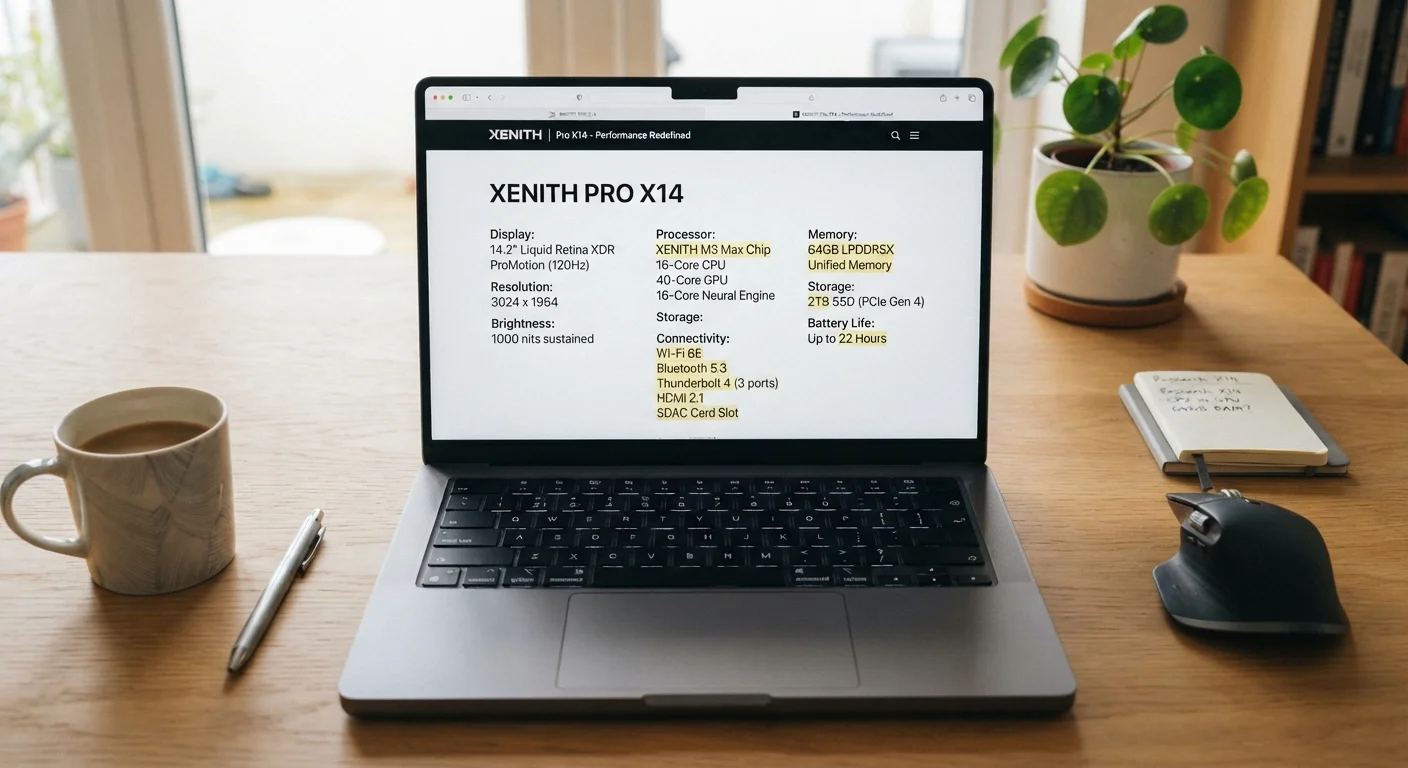
Shopping for a laptop means wading through spec sheets packed with abbreviations, numbers, and model codes that often mean little without context. Terms like DDR5 RAM, NVMe SSD, and octa-core processor appear side by side, leaving many consumers to guess which numbers actually matter for their needs.
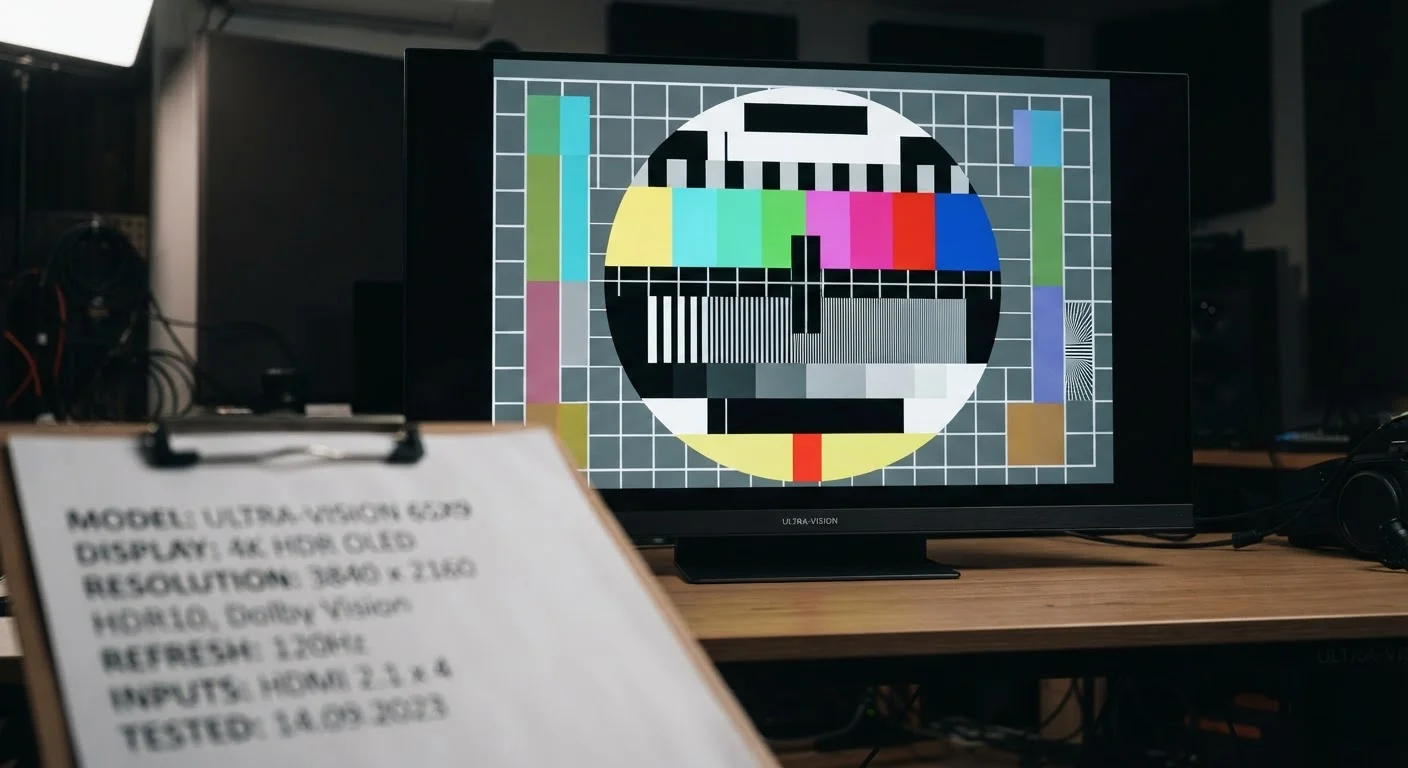
This guide treats those specs as a lookup reference — plain explanations of what each component does, how the numbers on a listing translate to real-world performance, and what tradeoffs to weigh. It pairs naturally with similar plain-language breakdowns in adjacent categories: if you've found a TV spec sheet equally baffling, see our guide to TV specs for the same treatment applied to resolution, refresh rate, and panel type.
| Minimum RAM for basic use | 8 GB |
| Recommended everyday RAM baseline | 16 GB |
| Common everyday storage baseline | 512 GB SSD |
| Fastest consumer SSD interface | NVMe (PCIe) |
| Key CPU performance factors | Core count, clock speed (GHz), generation |
| HDD vs. SSD speed difference | SSDs are typically 3–5× faster for common tasks (General industry benchmarking consensus) |
RAM: Your Laptop's Short-Term Memory
RAM (Random Access Memory) holds whatever your laptop is actively working on right now — open browser tabs, running applications, files being edited. It does not store anything permanently; when you shut down, RAM clears completely.
The practical effect of RAM is felt in multitasking. With too little, the system slows noticeably when you switch between apps or keep many browser tabs open, because it must constantly shuffle data in and out of slower storage.
RAM
Random Access Memory — the temporary workspace a laptop uses for active tasks. More RAM allows more programs to run simultaneously without slowdowns.
SSD
Solid State Drive — a storage device with no moving parts that reads and writes data significantly faster than a traditional hard drive.
NVMe
Non-Volatile Memory Express — a high-speed interface standard for SSDs that communicates directly with the processor, enabling much faster data transfer than the older SATA standard.
CPU / Processor
Central Processing Unit — the primary chip that executes instructions across all software. Speed, core count, and generation all influence overall system performance.
Clock Speed (GHz)
A measure of how many processing cycles a CPU core completes per second. Higher gigahertz values generally indicate faster performance on single-threaded tasks.
DDR (RAM generation)
Double Data Rate — a generational label for RAM technology (e.g., DDR4, DDR5). Higher generations offer improved speed and energy efficiency.
- 8 GB — Adequate for light use: email, document editing, a handful of browser tabs.
- 16 GB — A comfortable baseline for most users, handling moderate multitasking and light creative work.
- 32 GB+ — Suited to demanding tasks like video editing, large datasets, or running virtual machines.
You may also see DDR4 or DDR5 labels. These refer to the generation of RAM technology — DDR5 is faster and more energy-efficient, but both work fine for everyday computing. The total gigabyte count matters more than the generation for most users.
Storage: Where Your Files Actually Live
Storage is the permanent filing cabinet — it holds your operating system, apps, photos, documents, and everything else that survives a restart. Two main technologies dominate modern laptops.
SSD (Solid State Drive) is the current standard. SSDs have no moving parts, which makes them fast, quiet, and durable. Within SSDs, you'll see NVMe and SATA variants: NVMe drives communicate via a faster interface and are noticeably quicker for boot times and large file transfers, while SATA SSDs are still a significant improvement over the older alternative.
HDD (Hard Disk Drive) uses spinning magnetic platters. HDDs are slower and more fragile but offer larger capacities at lower cost. They appear less frequently in newer laptops, mostly in budget models where raw storage space is prioritized over speed.
For capacity: 256 GB suits very light users who store most things in the cloud. 512 GB is a practical everyday baseline. 1 TB+ works well for those with large media libraries or who prefer local storage.
Cloud Storage Changes the Equation
If you regularly use cloud services to store photos, documents, and media, you can often function comfortably on a 256 GB or 512 GB local drive. Local storage capacity matters most to users who work offline frequently, store large video or audio libraries, or prefer keeping files on-device for privacy or speed reasons.
Processors: The Brain of the Laptop
The processor — also called the CPU — executes every instruction your laptop carries out. It affects how quickly apps open, how smoothly video plays, and how the system handles demanding tasks like photo editing or spreadsheet calculations.
Processor listings include several important details:
- Cores: Modern CPUs have multiple cores — essentially independent processing units working in parallel. More cores help with tasks that can run simultaneously, like rendering video or compiling code. For everyday web browsing and office work, core count matters less.
- Clock speed (GHz): Measured in gigahertz, this indicates how many cycles per second a core completes. Higher GHz generally means faster single-task performance.
- Efficiency vs. performance cores: Newer chip architectures blend high-power cores for demanding tasks with low-power cores for lighter work, extending battery life while maintaining headroom for heavier loads.
Processor families vary by manufacturer, and generational improvements often matter as much as raw numbers — a newer mid-range chip may outperform an older high-end one in real use. Looking up independent benchmark comparisons using the exact model name on a listing is a reliable way to assess real-world performance without relying on marketing tier labels alone.
Understanding how these components interact is the foundation for evaluating any laptop listing confidently. Just as TV spec literacy helps you avoid paying for features you won't use, laptop spec literacy keeps the focus on what your actual workload demands.
16 GB
RAM sweet spot for most consumer workloads
Industry guidance consistently identifies 16 GB as sufficient for everyday multitasking, moderate creative work, and light gaming.
~5×
Speed advantage of NVMe SSD over traditional HDD
Sequential read speeds on NVMe drives commonly range from 3,000–7,000 MB/s versus 80–160 MB/s on mechanical hard drives in independent benchmark testing.