What Is a Home Network?
A home network is a group of devices — phones, laptops, smart TVs, tablets, and more — that share a single internet connection and can communicate with each other. When you stream a show, send an email, or ask a smart speaker for the weather, data is moving across this network dozens of times per minute.
At its simplest, a home network involves three layers: the internet connection coming in from your service provider, the equipment that distributes that connection inside your home, and the devices that use it. Understanding how those three layers relate to each other is the foundation for solving most everyday problems.
Router
A device that distributes your internet connection to all the devices in your home and manages network traffic between them.
Modem
A device that connects your home to your internet service provider, translating their signal into a form your home network can use.
Bandwidth
The maximum amount of data that can travel across your network connection at one time — think of it as the width of a pipe. More bandwidth means more data can flow simultaneously.
IP Address
A unique numerical label your router assigns to each device on your network so data reaches the correct destination.
Ethernet
A wired method of connecting a device directly to a router or network switch using a cable, typically offering faster and more stable speeds than Wi-Fi.
Mesh Network
A Wi-Fi system using multiple linked nodes spread around a home to provide consistent wireless coverage without dead zones.
The Gear That Makes It Work
Two pieces of hardware do most of the heavy lifting:
- Modem: This device bridges your home to your internet service provider (ISP). It translates the signal coming through your cable, fiber, or DSL line into data your devices can use.
- Router: This device takes the internet connection from the modem and distributes it — wirelessly or through cables — to every device in your home. It also manages network traffic, assigning each device a unique local address so data reaches the right place.
Many ISPs supply a combined modem-router unit. These are convenient but sometimes offer fewer features or slower speeds than standalone equipment. If you're setting up a home office or streaming in high resolution, understanding what's inside the box matters.
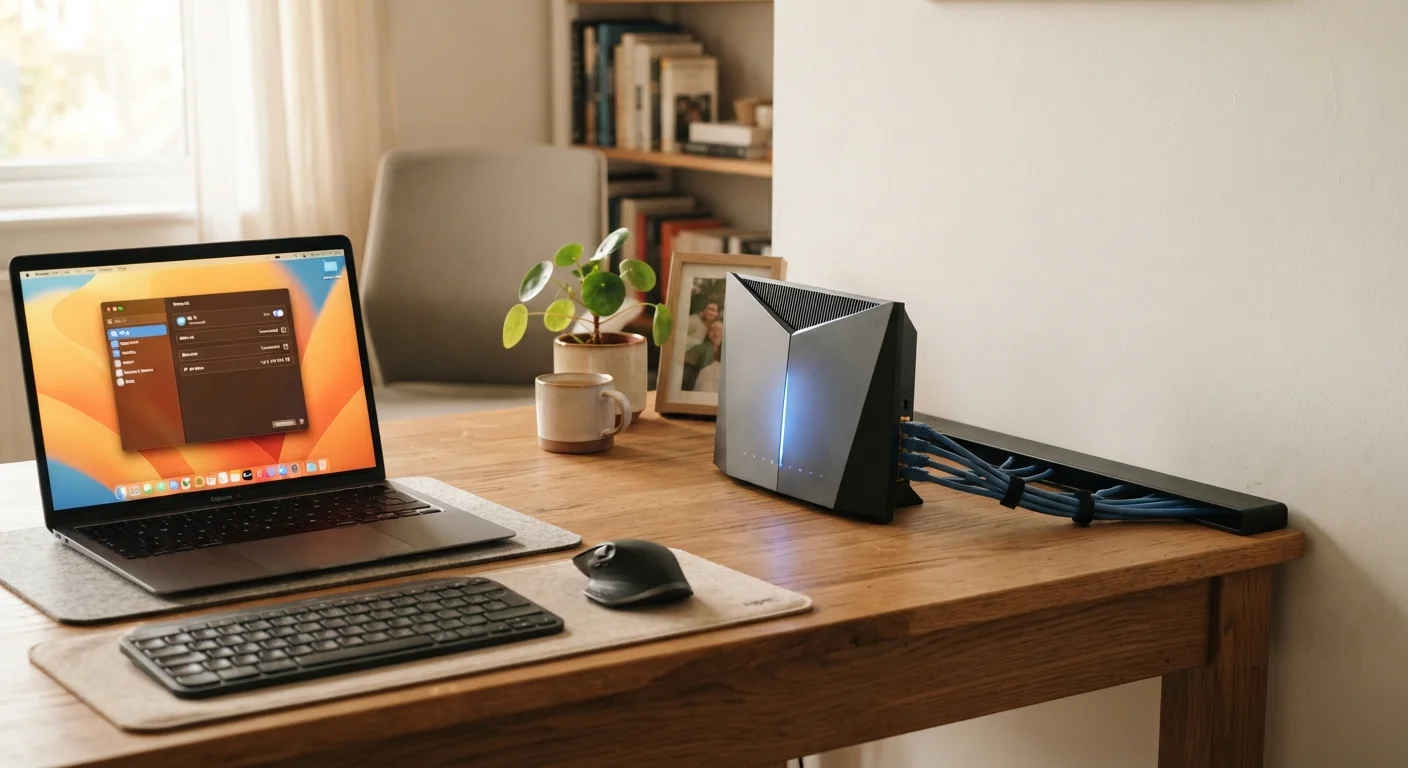
If your home has a dedicated workspace, the placement of this equipment is worth thinking through deliberately — much like planning functional zones in any room. See our room-by-room guide to home organization for ideas on structuring a home office layout that supports both productivity and connectivity.
Place Your Router Centrally
Router placement makes a measurable difference in Wi-Fi coverage. Position your router as close to the center of your home as possible, elevated off the floor, and away from thick walls or large metal appliances. Avoid closets — signals struggle to pass through enclosed, obstructed spaces.
Wi-Fi vs. Ethernet: When Each Makes Sense
Wi-Fi (wireless) is the default for most households because it's convenient — no cables, connect from anywhere. But wireless signals can be weakened by walls, appliances, and distance from the router.
Ethernet (wired) connects devices directly to the router using a cable. It's typically faster, more stable, and immune to wireless interference. For devices that stay in one place — a gaming console, a desktop computer, or a smart TV — running an ethernet cable is almost always worth it.
A useful rule of thumb: use Wi-Fi for portable devices and anything in a location where running a cable isn't practical. Use ethernet for anything stationary that demands reliable, high-bandwidth performance.
Powerline Adapters: A Middle Ground
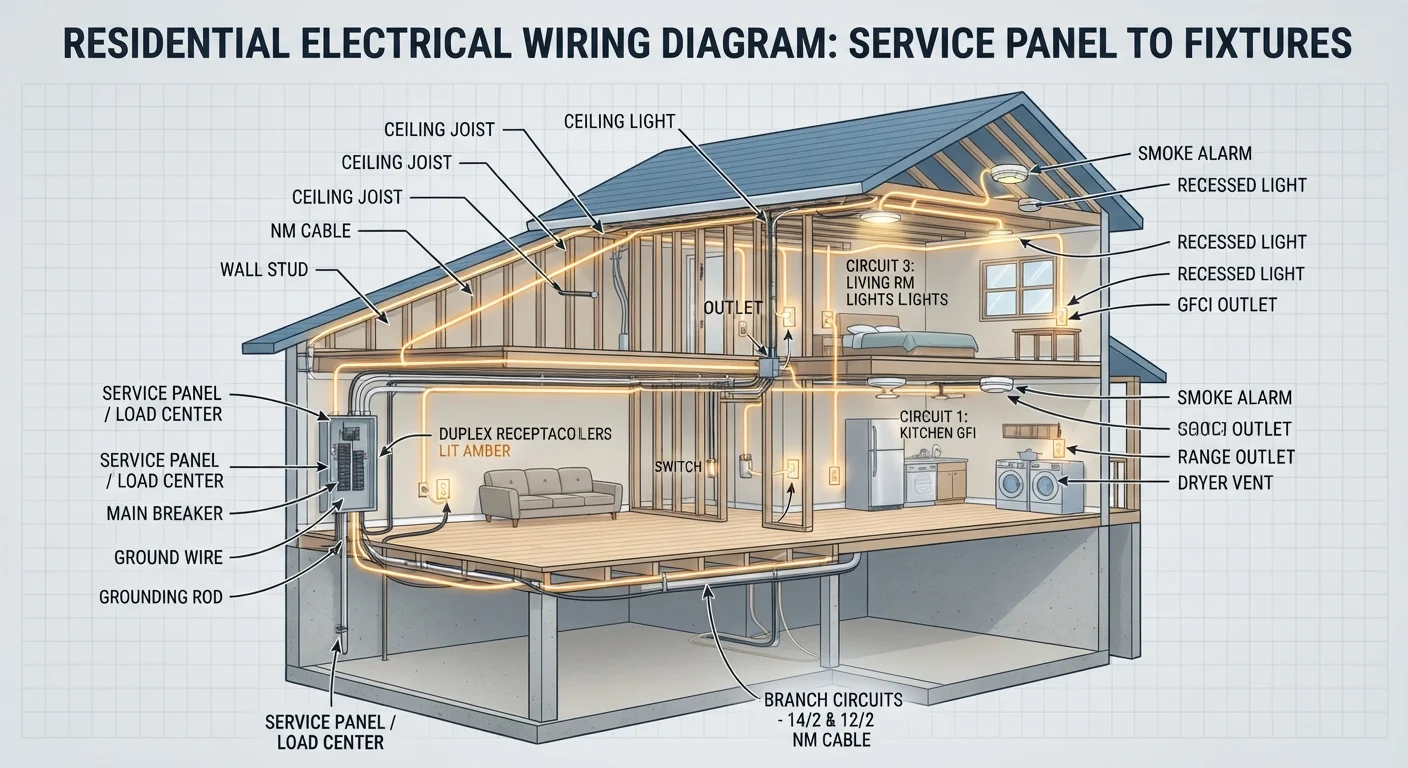
If running ethernet cable through your walls isn't practical, powerline adapters offer an alternative. They use your home's existing electrical wiring to carry network data between two adapter units plugged into standard outlets. Performance varies depending on the age and condition of your home's wiring, but for many households they deliver a meaningful improvement over Wi-Fi alone.
Mesh Systems and Coverage Problems
A traditional router broadcasts from a single point. In larger homes, multi-story layouts, or buildings with thick concrete or brick walls, that single signal may not reach every corner consistently. Dead zones — areas where signal is weak or absent — are the most common complaint about home Wi-Fi.
A mesh Wi-Fi system addresses this by using multiple nodes placed throughout the home, all working together as a unified network. Your devices connect to whichever node is closest, automatically. Unlike older range extenders, which created separate networks, mesh nodes share the same network name and manage handoffs seamlessly.
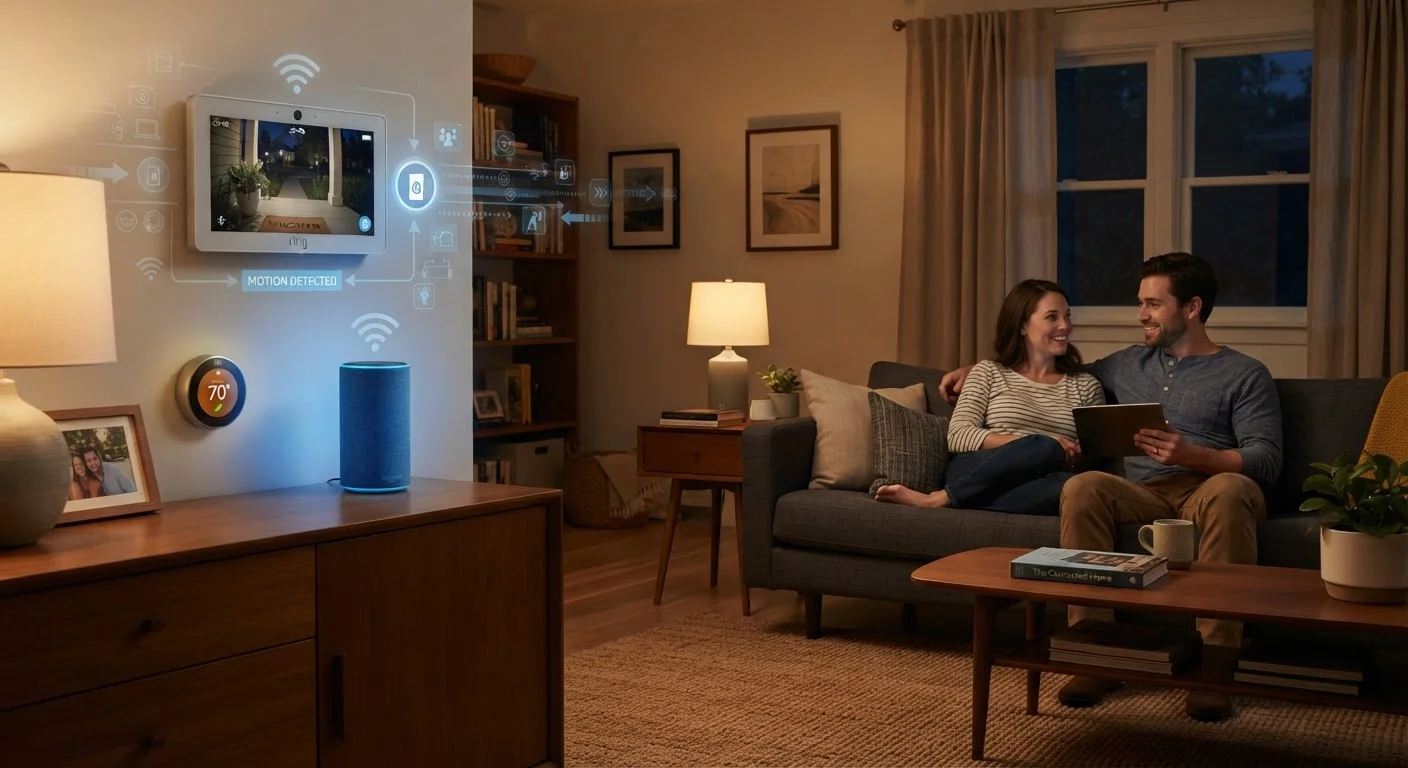
Mesh systems are particularly useful in homes with multiple floors or irregular floor plans. Smart home devices, which are often placed throughout the house, also benefit — for a deeper look at how those devices interact with your network and your privacy, see our guide on smart home devices and privacy.
Basic Security Every Household Should Have
Home network security doesn't require technical expertise — a few fundamental steps protect the majority of households from common risks.
- Change your router's default login credentials. Default usernames and passwords are publicly documented. Changing them prevents anyone who accesses your router's settings page from taking control of your network.
- Use a strong Wi-Fi password. A long, unique passphrase is harder to guess than a short one, and makes it significantly more difficult for unauthorized users to join your network.
- Enable WPA3 or WPA2 encryption. This setting, found in your router's wireless settings, encrypts data traveling over your network. Most modern routers default to this, but it's worth confirming.
- Keep router firmware updated. Router manufacturers periodically release updates that fix security vulnerabilities. Check your router's admin panel or app for available updates.
- Consider a guest network. A separate Wi-Fi network for visitors and smart home devices keeps them isolated from your primary devices, limiting what's accessible if any of those connections are compromised.
These steps take less than an hour and meaningfully reduce your household's exposure. Your home's digital infrastructure deserves the same attention you'd give its electrical system — both run invisibly in the background and become obvious only when something goes wrong.
Don't Overlook Default Credentials
Many home routers ship with the same default admin username and password — information that's easy to find with a quick internet search. If you've never changed these credentials, your router's settings are potentially accessible to anyone on your network. Change both the admin login and your Wi-Fi password before connecting any other devices.