
Why These Steps Matter More Than You Think
Selling or recycling an old phone, tablet, or laptop feels like a simple errand. In practice, it's a privacy decision. Modern devices are dense with personal information — saved passwords, payment methods, health data, location history, and linked accounts that extend far beyond the device itself. A factory reset is an important step, but on its own it isn't always enough.
The good news: a structured approach takes less time than most people expect, and it significantly reduces the risk of personal data ending up somewhere it shouldn't. This checklist covers smartphones, tablets, computers, and connected devices including smart home hardware and wearables.
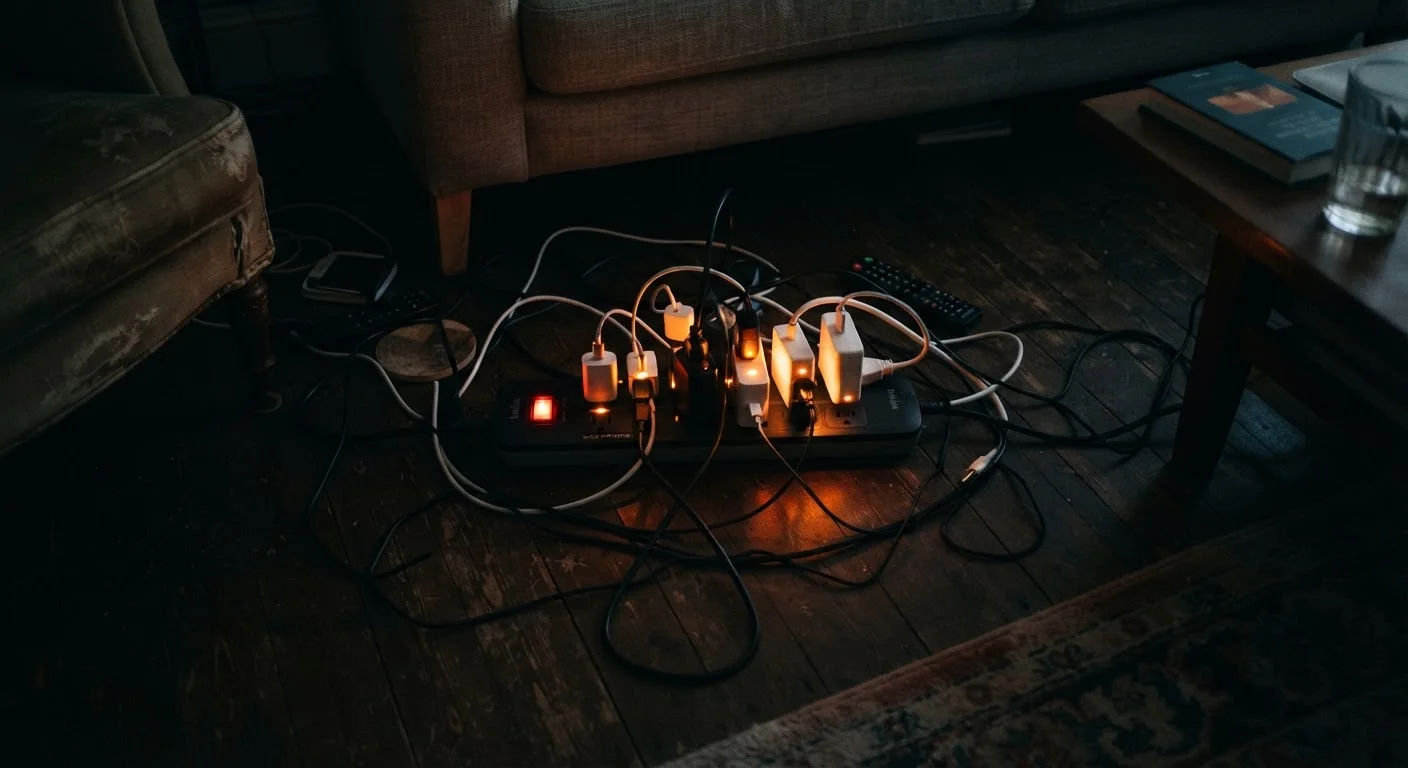
If you've been holding onto aging hardware partly out of habit, it's worth knowing that idle electronics carry their own costs. Our article on the hidden costs of keeping old electronics plugged in explains how standby power consumption adds up. Clearing out devices you no longer use is both a privacy and an efficiency decision.
Cloud Backup Service
Securely stores photos, contacts, and app data before you wipe the device.
Manufacturer's Factory Reset Function
The official, built-in reset option is the safest way to wipe device data completely.
External Hard Drive or USB Drive
Provides a local backup option for large files that may be slow to upload to cloud storage.
Device Companion App (for wearables/smart home)
Required to properly unlink and factory reset smart home and wearable devices.
The Full Pre-Sale and Pre-Recycle Checklist
Work through these groups in order. Backing up before wiping, and signing out before resetting, will prevent the most common problems people encounter when handing off devices.
Never Skip Account Sign-Out on Shared Family Devices
Devices shared among family members may have multiple accounts active simultaneously. Before resetting, verify that every user's account — including children's accounts — has been signed out and the device removed from family sharing or parental control groups. Failing to do so can disrupt active subscriptions or leave child accounts linked to the device.
Back Up What You Need to Keep
Sign Out of All Accounts
Wipe Data Thoroughly
Handle Smart & Connected Devices
Final Checks Before Handoff
Activation Locks Can Brick a Device for the Buyer
If you sell or recycle a smartphone without disabling Find My iPhone or Find My Device first, the device will remain locked to your account. The new owner will be unable to set it up, and some recyclers will reject locked devices outright. Always confirm the activation lock is fully removed before the device changes hands.
Deleting Files Is Not the Same as Wiping Them
Simply deleting photos or apps does not remove the underlying data from storage — it only removes the reference to that data. Someone with the right tools can potentially recover files from a device that was only 'emptied.' Encryption followed by a factory reset is the standard method for making personal data unrecoverable on consumer devices.
For smart home devices specifically, the unlinking process varies by platform. Consult our overview of smart home devices and data privacy for more context on what these devices store and why proper removal matters.
What Comes Next
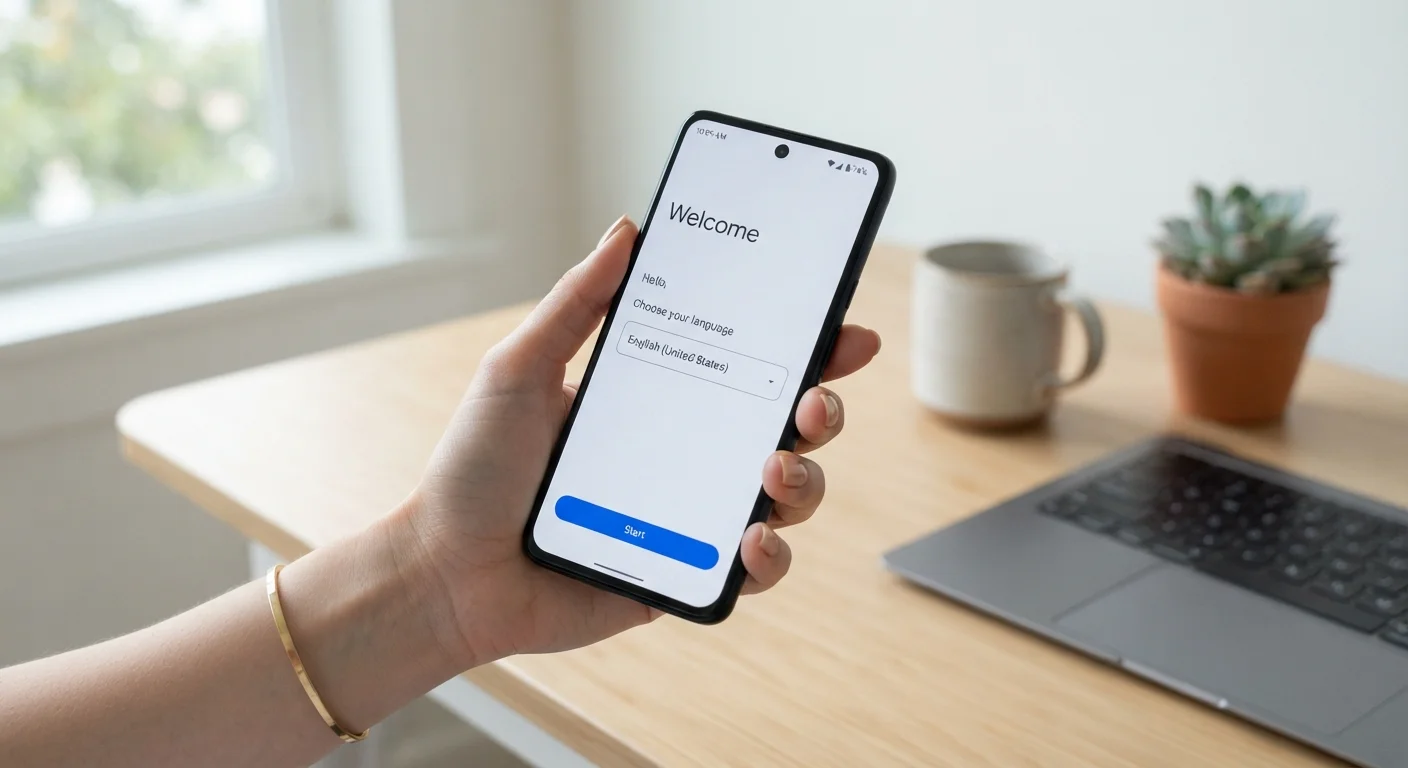
Once your old device is wiped, signed out, and physically clean, you're ready to hand it off with confidence. If you're transitioning to a new phone at the same time, the setup decisions you make in the first few minutes matter. Our guide to setting up a new smartphone the right way from day one walks through the security settings and account choices worth getting right before you install a single app.
If you're not replacing the device and are simply trying to extend the life of what you already own, maintenance habits that actually extend device life covers software, storage, and physical care practices that genuinely make a difference.
Taking even an hour to properly prepare a device before it leaves your possession is one of the more straightforward data hygiene habits available to everyday consumers — and this checklist gives you everything you need to do it right.