What Each Storage Type Actually Means
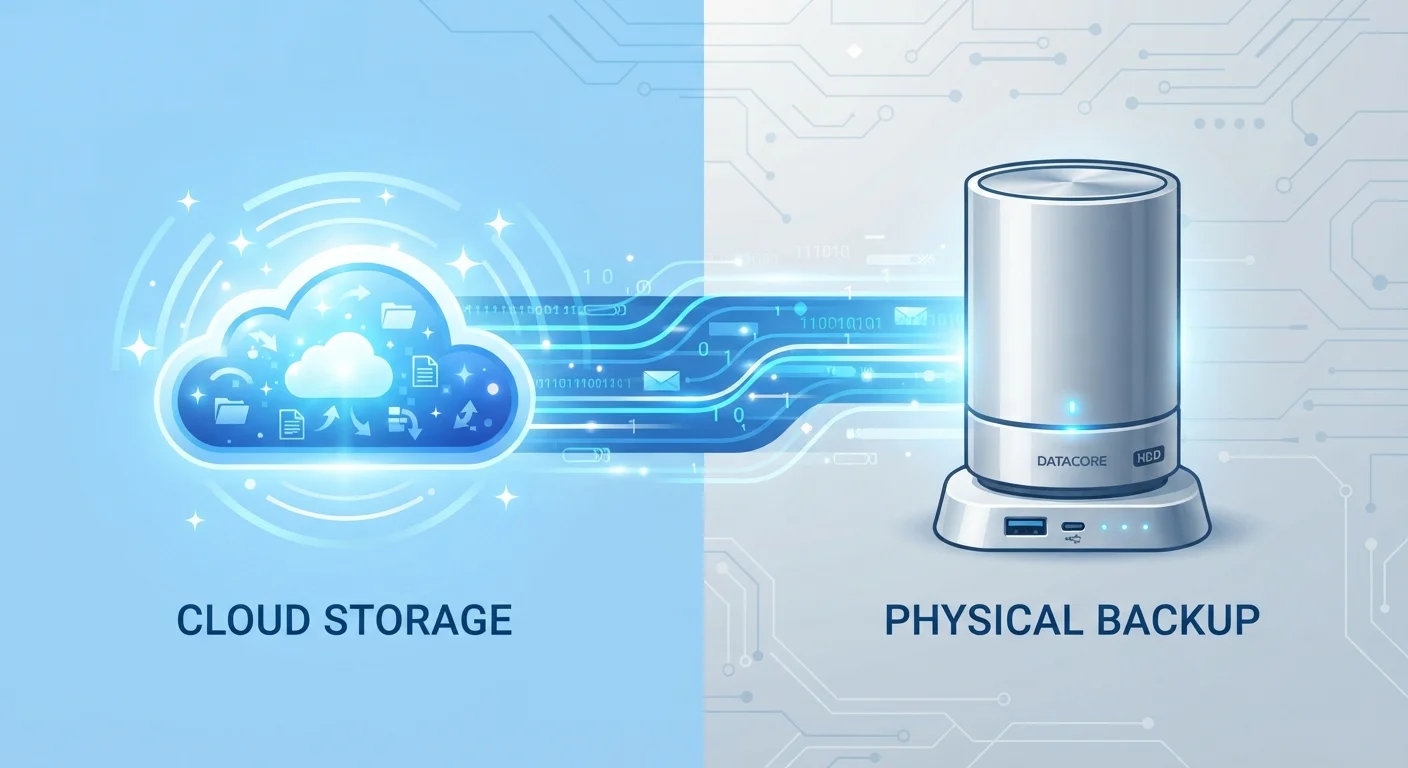
Local storage refers to any physical medium attached to or housed within your device — internal hard drives (HDD), solid-state drives (SSD), external drives, and USB flash drives all qualify. When you save a file locally, it writes directly to that hardware. No internet connection is needed to retrieve it.
Cloud storage works differently. When you upload a file to a cloud service, it travels over the internet to a data center — a facility full of servers owned and operated by a third-party provider. That provider stores your file and makes it accessible from any device where you're signed in. Popular consumer examples include services offered by major technology companies across platforms for phones, computers, and browsers.
Understanding this physical reality matters: your cloud files do live somewhere — just not on hardware you can touch or see.
| Criterion | Cloud Storage | Local Storage |
|---|---|---|
| File Location | Remote servers (data centers) | Physical device you own |
| Internet Required | Yes, for access | No |
| Access Across Devices | Yes, from any device | Limited to connected hardware |
| Speed | Dependent on internet speed | Fast, direct hardware read/write |
| Cost Model | Ongoing subscription | One-time hardware purchase |
| Privacy Control | Shared with third-party provider | Fully under your control |
| Redundancy | Built-in (provider-managed) | Requires manual backup |
| Risk of Loss | Provider outage or account issue | Physical damage, theft, or drive failure |
Reliability, Access, and Speed
Local storage wins on raw speed. Because data doesn't travel across a network, reading a large video file or launching a locally stored application is nearly instantaneous compared to streaming or downloading from the cloud. This makes local storage the practical choice for tasks involving large files, whether that's video editing, music production, or managing high-resolution photography libraries.
Cloud storage wins on availability. As long as you have an internet connection, your files are accessible from any device — a huge advantage if you regularly switch between a home computer, work laptop, and smartphone. However, that dependency is also a weakness: a slow or unavailable internet connection makes your cloud files temporarily unreachable.
94%
Enterprises using cloud services
According to Flexera's State of the Cloud Report, the vast majority of organizations — and a growing share of individual consumers — now rely on cloud infrastructure for at least some storage needs.
3-2-1
Recommended backup rule
The widely cited 3-2-1 backup strategy — three copies of data, on two different media types, with one stored off-site — recommends combining local and cloud storage for maximum protection.
Reliability also depends on the failure mode you're protecting against. A local drive can fail from physical shock, heat, or age. A cloud provider's servers, by contrast, use redundant storage systems that replicate your files across multiple locations — meaning a single hardware failure on their end doesn't cost you your data.
Privacy, Security, and Control
With local storage, you are entirely in control. Your files don't pass through any third-party infrastructure, which limits exposure to data breaches at the provider level. That said, the security of local storage depends entirely on you — if your device is stolen, damaged, or infected with malware, your files are at risk unless you've made separate backups.
Cloud storage introduces a different risk profile. Your data is transmitted and stored by a company operating under its own terms of service, privacy policy, and legal jurisdiction. Reputable providers encrypt files both during transmission and at rest on their servers, but you are trusting that company's security practices and their compliance with data laws. Notably, cloud providers may be legally compelled to hand over data in response to government requests, depending on applicable law.
Cloud Encryption: What It Does and Doesn't Cover
Most reputable cloud providers use encryption to protect your files during upload (in transit) and while stored on their servers (at rest). This protects your files from unauthorized interception or server breaches. However, encryption does not necessarily prevent the provider itself from accessing your data under their terms of service. If end-to-end encryption — where only you hold the decryption key — is a priority, look specifically for services that offer it as a documented feature, and verify this in their published documentation.
For most everyday consumers, the practical security of a well-regarded cloud provider is strong. But for highly sensitive files — financial records, legal documents, confidential business data — storing those locally (with a separate, encrypted backup) keeps more control in your hands.
Cost and Long-Term Considerations
Local storage involves a one-time purchase. A portable external SSD offering 1–2 terabytes of storage can be purchased once and used indefinitely (typical consumer-grade drives are rated for several years of normal use). There are no recurring fees, and you own the hardware outright.
Cloud storage is typically subscription-based. Most services offer a small amount of free storage — commonly 5–15 gigabytes — with expanded capacity available for a monthly or annual fee. Over several years, subscription costs can exceed the equivalent cost of a local drive, though you also receive ongoing benefits like automatic syncing, backup, and access from anywhere.
A practical middle ground that many consumers already use without realizing it: keep working files locally for speed and privacy, while enabling cloud backup for important documents and photos. This hybrid approach mirrors the professional IT principle of redundancy — don't keep data in only one place. Whether you're managing family photos or work projects, understanding where your files actually live helps you make deliberate choices rather than defaulting to whatever setup came pre-configured on your device.