The Real Reasons Your Battery Doesn't Last the Day
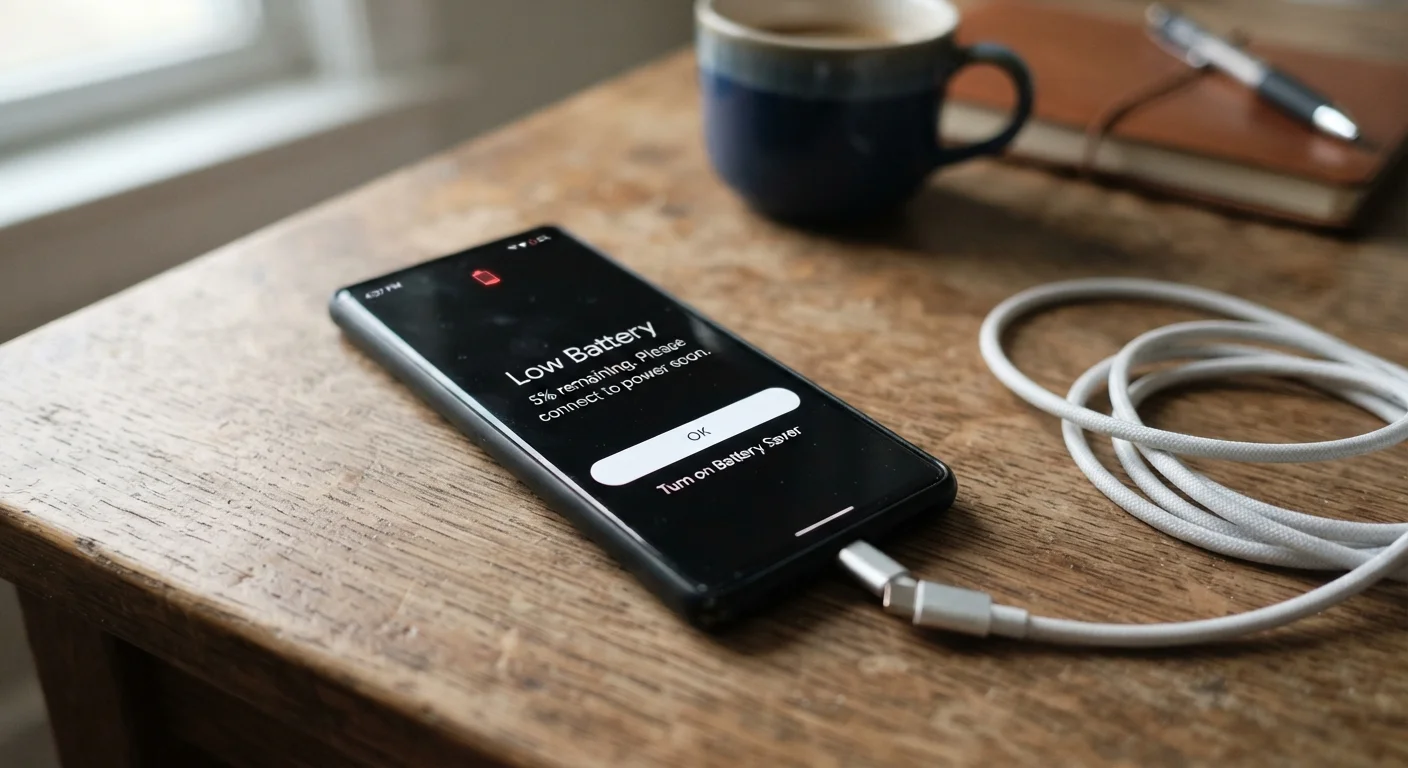
A smartphone that barely survives to dinner isn't just inconvenient — it's often a sign of several compounding habits and settings working against you at once. The good news is that most rapid battery drain has identifiable causes, and once you know what to look for, you can address them directly without buying anything new.
Modern lithium-ion batteries are engineered to balance energy density with longevity, but they're sensitive to how you use and charge your device. Understanding where power actually goes is the first step toward getting a full day out of your phone again. Your device's built-in battery usage screen (found in Settings on both iOS and Android) is the most reliable starting point — it breaks down consumption by app and system process.
~30%
Battery power used by the display
Display consumption typically accounts for roughly 30% of total battery usage on modern smartphones, according to analyses from device manufacturers and independent battery research.
20%
Annual capacity loss in lithium-ion batteries
Lithium-ion batteries commonly lose a meaningful portion of their peak capacity within the first two years of regular use, a figure cited in battery engineering literature.
Common Mistakes That Accelerate Battery Drain
Most users make at least a few of these errors without realizing it. Each one might seem minor individually, but together they can cut usable battery life by hours.
Leaving background app refresh enabled for every app.
Why it happens: Most phones enable background refresh by default, so users never think to review it after setup.
Running screen brightness at or near maximum all day.
Why it happens: Outdoor use often pushes people to crank brightness up, and they forget to lower it when they're back inside.
Keeping Wi-Fi, Bluetooth, and GPS on constantly even when not in use.
Why it happens: These radios are enabled by default and easy to forget about, especially if you use them intermittently throughout the day.
Charging the phone to 100% every night and leaving it plugged in.
Why it happens: Overnight charging is a deeply ingrained habit that feels logical — start the day fully charged.
Ignoring push notification settings, allowing dozens of apps to wake the screen constantly.
Why it happens: Apps request notification permission during install, and most users approve without reviewing the long-term impact.
For a deeper look at how charging habits affect long-term battery health, see our guide on charging habits that shorten battery life — the same principles that apply to tablets hold true for smartphones.
What You Can Realistically Do Right Now
Addressing battery drain doesn't require technical expertise. Start with your screen: reduce brightness to around 50–60% in normal indoor conditions and enable adaptive brightness so the display adjusts automatically. Then open your battery settings and identify any apps consuming power disproportionate to how often you use them — restricting their background activity takes about 30 seconds per app.
Location services deserve particular attention. Many apps request constant location access when they only need it while in use. Review location permissions and switch most non-essential apps to "While Using" or off entirely. Similarly, if you're in an area with weak cellular signal, your phone burns extra power searching for a stronger connection — toggling to Wi-Fi calling or enabling airplane mode in dead zones can help.
Battery Replacement May Be Worth Considering
If your phone is more than two to three years old and the battery no longer holds a charge reliably even after optimizing settings, the battery itself may have degraded beyond normal optimization. Both iOS and Android provide battery health indicators in Settings. A battery health reading below roughly 80% is generally the threshold at which manufacturers and repair technicians suggest considering a replacement — consult a qualified repair professional rather than attempting a DIY replacement, as improper handling of lithium-ion batteries carries safety risks.
If you're setting up a new device and want to get these settings right from the start, our new smartphone setup guide walks through the key decisions. And if your phone is aging and battery degradation is becoming a pattern, practical device maintenance habits can help extend its useful life further.